If you lost the Swann DVR password, here you will learn how to reset the DVR by using a code (swann dvr mac address). You only need to use a mobile phone, tablet or computer and follow simple instructions.
This is a Swann factory reset procedure that works for the models 4350, 4500, 4900, 8050 and 8075 and after the DVR reset you must create a new password of your choice. It's really easy, just keep reading...

The reset procedure is very simple, you need to find a code and use it for the DVR reset, I will explain 3 different methods that work in few minutes, just be patient enough to read the article and you will reset your Swann DVR today.
If you have an old Swann DVR you can also check the article: How to reset H.264 DVR which has some information about use a method with jumper.
The code for Swann DVR password reset
There's no universal Swann DVR password, each device has a unique code that is related to internal network board. To tell the truth, it's not really a code, but a serial number used by every equipment that connects on a network.
You can use this code as type of Swann super password.
This serial number is the Swann DVR Mac Address and the DVR is designed to accept it as a reset code for lost passwords, So let's just find the code...
Understand what you are doing
I know you are here just to get the code and reset your Swann DVR, but, please just don't rush, a little bit of explanation is necessary due to the fact that the network where your DVR is installed can be different than mine.
The 3 methods to find the MAC ADDRESS
OK, there are several methods to find the Swann DVR MAC ADDRESS, but I will show you the 3 easiest ones, so you get it quick without technical details.
Swann technical support teaches you how to install their software to find the Swann MAC ADDRESS, but for the first method you don't even need it.
As Swann keeps calling the MAC Address a code, I will do the same just to make things simpler, so let's take a look at the methods.
Method 1: Find the code using a mobile or tablet
To be able to find the Swann DVR MAC Address, you must connect the DVR to the network. Use a network cable just like you see in the picture below:
On the DVR you will find a network port (1) that is identical to router's (2)

Your mobile must be connected to the Wi-Fi router to be able to see the devices on the local network. Take a look at the diagram below.

You just need to install an App on your mobile to scan the network and find your Swann DVR. The trick is look for the devices that are connected in the same network and to see their MAC ADDRESS and just pick the DVR's one.
Make sure your mobile is connected to the Wi-Fi
You must be 100% sure that your mobile is connected to the Wi-Fi router and not the cellphone carrier, so check if the little on the top of your mobile.
CORRECT

WRONG

How to connect your mobile to the WiFi router
OK, I'm sure that most of you readers know how to connect to the WiFi, network, but just in case, here are the instructions
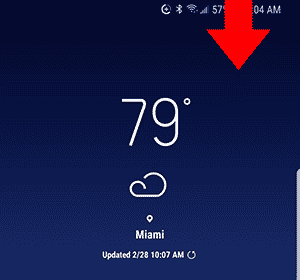
Slide your finger on the screen
Make sure the WiFi is ON

Just check if your WiFi is ON by looking at the icon at the left side.
If it's grayed out, just click on WiFi icon to turn it on and then click the gear at the top right of the screen.
Click Connections

Make sure your WiFi is here

Download the App Network Analyzer
Network analyzer is a Free App that can scan your network to find everything that is connected including your Swann DVR. It's a powerful tool.
Open your PlayStore or Android Store and look for "Network Analyzer"
Just install the APP

Click the left top icon

Click "LAN SCAN"

Check Swann Mac Address

That's all, now you have your CODE to type on the Swann DVR.
The App will scan and show you all the devices on the network, so just make sure you found the DVR by looking at the name at the left. You should see something with Swann name. also make sure the code starts with bc:51:fe
Make sure to enter the code without the colons
Just type the Swann DVR mac address in your the DVR login screen and hit the "OK button". In this example the code is: bc51fe636c3b

--> You can also try the code without removing the double colon (:)
-- THE DVR WILL REBOOT. YOU MUST CREATE A NEW PASSWORD --
Method 2: Find the code using a computer
If your Swann DVR is connected on your network just like the diagram below, this method can work for you as long as you have a computer or laptop.

Guest what.... you computer, router and everything else in the network have also have their own MAC ADDRESS. Your computer can ask your Swann DVR what is its Mac Address and you just need a simple command to see it.

Type CMD at the search box at the bottom left of your laptop's screen.
The Command Prompt icon will show up, just click it to open the screen
Alternatively you can use the key combination Windows + R and type run in the windows that pops up

Either way will work and you will something just like the image below:
This is the Windows Command Prompt. You can use it to send commands to the devices on the network and also do some technical stuff.

Don't worry, you just need to type a simple command to get the CODE.
Just type the command arp -a in the command prompt and you will see a bunch of different numbers. Just look for the one that starts with bc:51:fe

Just type the Swann DVR mac address in the DVR login screen and hit the "OK button". In this example the code is: bc51fe5f8af1
Make sure to enter the code without the colons