This is a Wyze Cam review and setup article.
If you are looking for a small, affordable, and easy to use wireless security camera just keep reading to learn more about the Wyze Cam V2 priced at $19.99.
The camera was designed by the Wyze Labs, headquartered in Seattle, WA, US.

The Wyze Cam V2 is a small wireless home security cube camera with full HD video, motion and sound detection, night vision, two-way audio, and time lapse. The camera is designed to work indoors using 2.4GHz Wi-Fi networks, can record into an SD card and send live video streaming to a mobile device.
Wyze Cam Review
Camera overview
The Wyze cam is an inexpensive wireless security camera with a cube form factor.
You just need to insert an SD card for local video recording, download the Wyze cam App, press a button on the camera and follow the instruction for the setup.

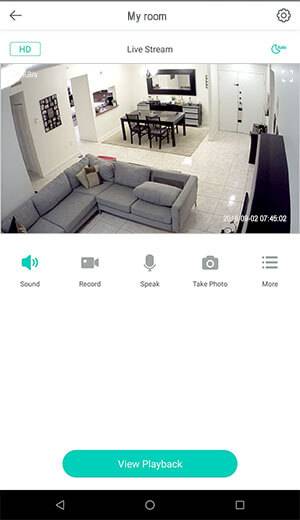
The camera syncs with the mobile phone and starts transmitting HD video.
The App is very simple to use and allows to interact with the camera by turning the night vision on and off and getting events such as motion and audio detection.
The Wyze Cam has good quality video, take a look at the pictures below with lights on at the left and lights off (camera night vision) at the right.

Wyze Cam V2 form factor
The camera has a white cube shape that is pretty discrete and can be installed on a flat surface. The dimensions are 2.2 x 1.9 x 1.9 inches, HWD.
The camera base allows you the adjustment to get the better angle.

It's possible to adjust the Wyze Cam up and down and also rotates its base.
The base can also use a magnetic plate that allows the installation on any metal surface, or you can use a 3M adhesive tape that comes with the camera to install on wood, glasses, or another type of non-metal surface.
Wyze Cam V2 back part
In the back part, the Wyze Cam has a power input, USB connection, and Speaker.
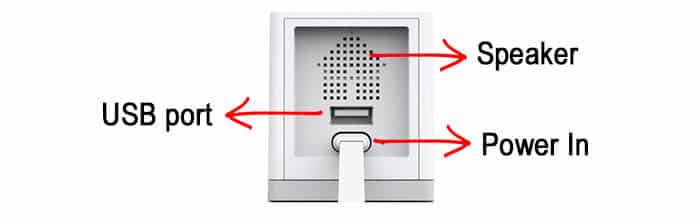
The speaker allows a 2-way communication, which means, you can talk over the phone and somebody close to the camera can hear your voice.
The camera comes with a 6-foot Micro-USB power cord that is connected to an AC adapter that must be plugged into an outlet. The power supply can power up a second camera connected via the USB port (daisy chain).
Lens and view angle
With a 110-degree viewing angle, the camera is ideal for indoor environment and allows you to monitor a room with piratically no blind spots.
Take a look at the picture below to have an idea about the camera viewing angle.

It's possible to use the digital zoom to obtain up to 8X magnification.
Wyze Cam V2 night vision
Infrared LED located in the front part of the camera allow to see the image in the dark.
Anything that is located up to 30-feet from the camera will be in the infrared range, this is enough for most of the indoor installations.

The night vision mode has three options:
- Off: Which means the camera won't turn on the LED lights;
- ON: The camera will keep the LED always on (not recommended);
- Auto: A light sensor will trigger the LED on/off when needed.
Don't try to use the infrared light to monitor through a glass because it doesn't work.
Also be careful when pointing the camera to a reflective surface such as glass or metal because the light can bounce back to the camera lens.
The camera sensor and processor
Do you know why it's important to have information about the camera sensor ?
OK, let me answer that for you... the sensor captures the light to convert it to digital signals and the better the sensor, the better the image quality, especially with harsh environmental conditions such as lower light or brighter areas.
The Wyze Cam V2 has a CMOS (Complementary Metal Oxide Semiconductor) sensor that captures images at crisp 1080p (also know is Full HD) resolution.
This sensor was improved from the previous version and it's much better now.
Combined with the camera internal processor, the Wyze Cam V2 can work with up to 15 FPS (10 FPS in the previous version) which allows you to have images without that weird jumping effect when somebody or something is moving in front of the camera.
Wyze Cam V2 setup
The camera initial setup is very simple, you just need the camera, a smartphone or tablet, and a wireless router.
After installing the Wyze Cam V2 app on your mobile, create an account, press a button on the bottom of the camera and point it to the mobile to read a QR code.
See the step-by-step below:
On the mobile just click the Play Store (Android devices) or the Apple Store (IOS devices) and search for the Wyze App.


Click the Install button, wait for the installation and open the Wyze Cam app


Click Sign UP to create a new account, enter your email and pick a password


Enter the code that you received by email and in the next screen click Allow


Click the button Add Camera and choose the Wyze Cam V2 model


Click and hold the button on the bottom of the camera and point it to your mobile

Confirm that you heard the camera say "Ready to connect"