In this article, I show how to view Hikvision camera on Echo Show devices.
By the end of this article, you can have your Hikvision camera working with an Echo Show device or with the Fire Stick TV, as shown below.
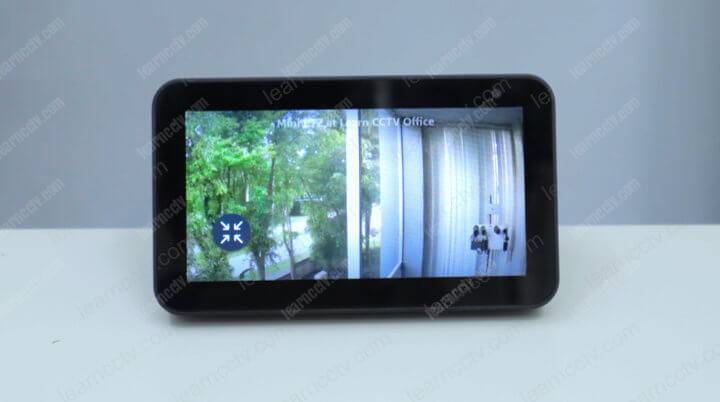
Hikvision camera on Echo Show
I've tested this procedure with a Hikvision Mini PTZ DS-2DE2A404IW-DE3 and an Echo Show 5, and it worked pretty fine after some tweaks.
How the setup work
The Hikvision camera doesn't work directly with Amazon devices, so it's necessary to use a gateway to connect to an Alexa account. See the picture below.
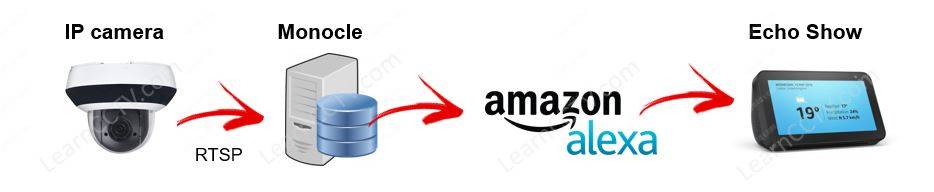
As you can see, the IP camera uses the RTSP protocol to stream the video to the Monocle server, which acts as a media gateway and relays the video to the Echo Show device. This process also works with the Fire Stick TV (all generations).
The Monocle server is available on the Internet for Free when I'm writing this article, and you just need to create an account to start using the service.
==> You need to enter a username and password for the RTSP stream into the Monocle Server, so I recommend creating a new user on the camera with a different password. Please don't use the admin account.
It's also recommended to use this procedure only with outdoors or public cameras that don't expose your privacy; please don't take any unnecessary risks.
Setup for differente devices
You need to use a different setup, depending on the Amazon device you have.
Some cameras and Amazon devices require an extra step to stream the video using encryption communication between your Alexa devices and your IP cameras.
Let me explain the difference between those setups.
Setup 01: Basic Gateway Service
This setup works with the IP cameras streaming directly to the Monocle gateway and them to your Echo Show device or Fire Stick TV, as shown below.
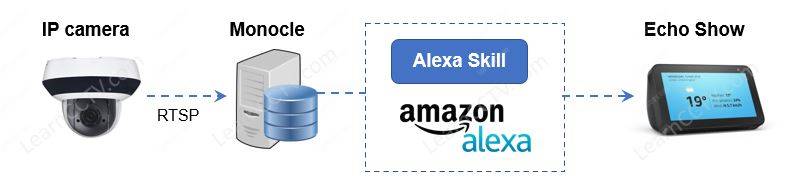
This process is straightforward; you just need to create an account on the Monocle website, enter the information about your camera, and install/setup the Alexa skill.
Don't worry; I will come back to that later and show the step-by-step process.
Setup 02: Gateway Service with Tunnel
Some IP cameras and Amazon devices models need to use an especial setup with a tunnel configuration; take a look at the following illustration.
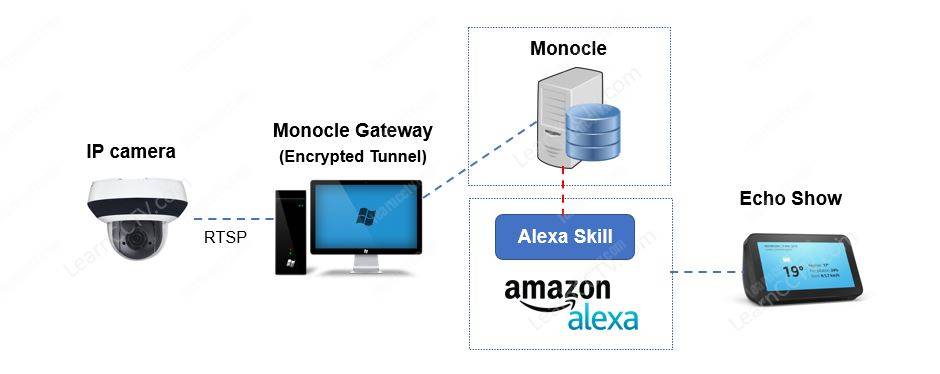
This setup complicate things a little bit, but you can still make it work.
I used this setup with my Hikvision Mini PTZ camera streaming video to an Amazon Echo Show 5, a Fire Stick TV, and a Fire Stick TV 4K. It worked pretty fine.
Hikvision Camera With Echo Show (Basic Setup)
OK, it's time to show you how to set up a Hikvision camera with Echo Show.
As I said before, the setup is different depending on the device's models you have.
Later on this article, you can find a compatibility table, but now let's just learn how to do the basic setup since it's required anyway, even if you need to use the second setup with the encrypted tunnel. So let's dive into the configuration.
Create a Monocle Account
Visit the Monocle Website and create a free account.
By the time I'm writing this article, the service is in beta version.
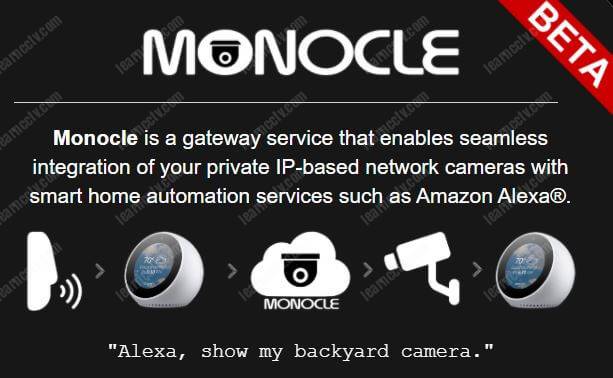
By the time I'm writing this article, the service is in beta version.
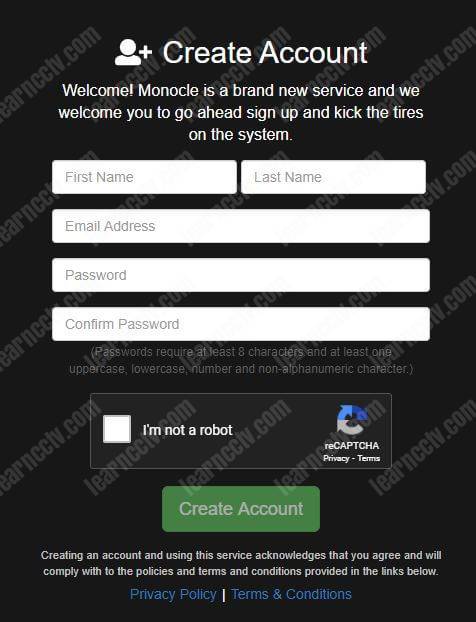
Make sure you enter the correct email to receive the confirmation.
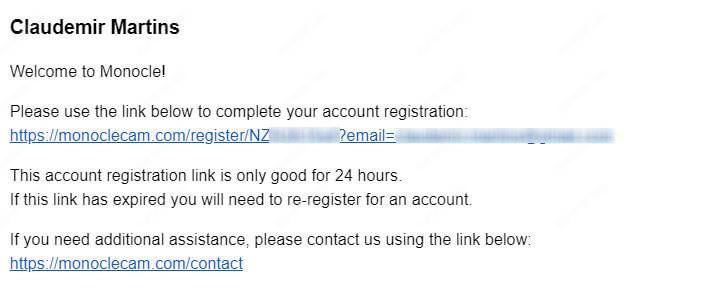
Click to confirm the account creation and move to the next step.
Set up the camera video stream
You need to get the camera information to set up the Monocle's camera feed.
Log in to your camera to check the configuration and change it if necessary.
The picture below shows the example of my Hikvision Mini PTZ camera.
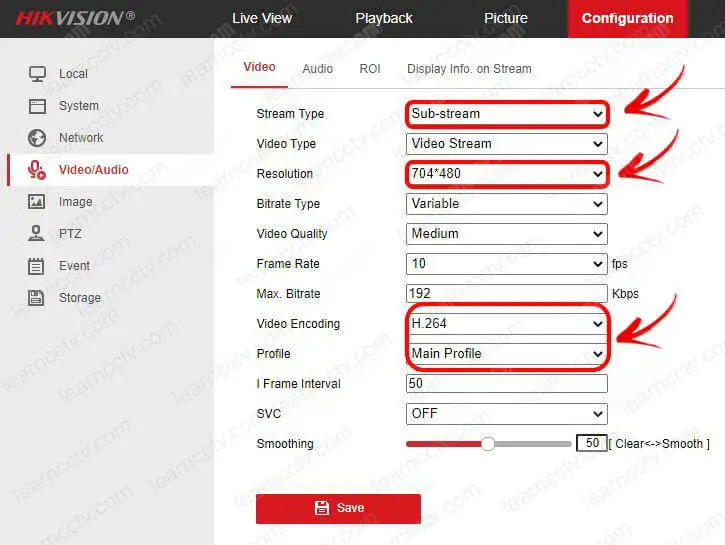
At first, you can use the second video stream available in the camera; you can find it in the "Video/Audio" menu under the "Stream Type" drop-down box.
The Sub-stream is available on an IP camera for remote device access.
It's a good idea to try it first before moving to the main stream.
During the set up for my Hikvision camera, this configuration worked correctly for the Echo Show and the Fire TV Stick. Pay attention to the resolution and the Video encoding properties; use H.264 for video encoding with the Main Profile.
==> New Hikvision cameras come with the H.265 CODEC, do NOT use it.
Create a second user on the camera
Don't use the camera's admin account for the Monocle configuration.
You are leaving sensitive information on somebody else's server, so it's better to think carefully about security and create a second user that has only live view privileges and can't cause any harm to your camera. You got the idea, right?
Create an operator user with limited privilegies as shown below.
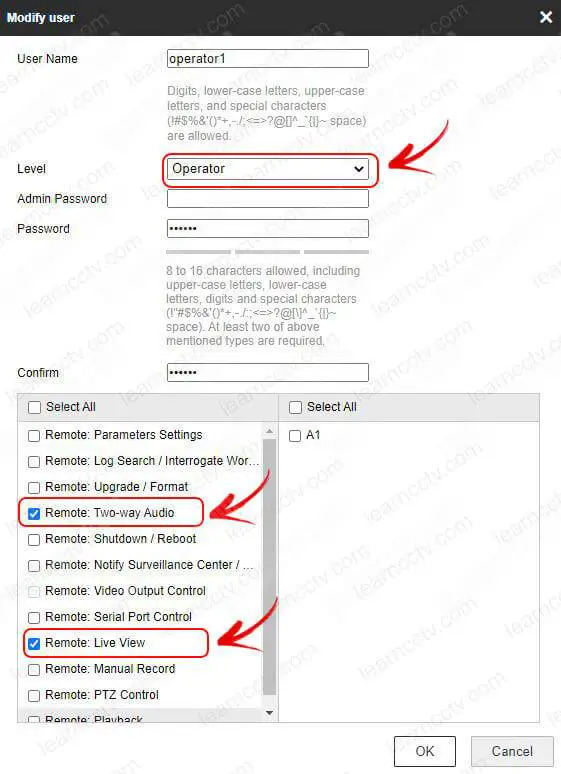
You don't need to change other camera configurations; I've seen people talking about enabling the ONVIF protocol and changing the authentication from Digest to Basic and other stuff. It's not necessary, and you are putting your camera at risk. Hikvision cameras use to work as described in this article.
The next step is to get all the necessary information for the configuration.
Get the camera information
You need to get all the information to enter into the Monocle server.
- Camera IP Address
- RTSP port number (usually 554)
- RTSP URL
I believe you know where to find the camera's IP address, right?
Anyway, just in case, see below an example of the menu where you can find it.

Most IP cameras come with the universal RTSP port number 554.
Hikvision cameras are not different, so it shouldn't be a problem.
The picture below shows where you can check this information.
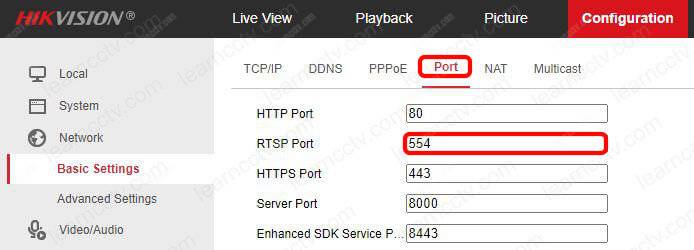
And finaly, you need to have the RTSP UTL for your camera.
This information is different for every manufacturer; I have an article to find an RTSP UTL list for the most popular ones. See below the RTSP URL for Hikvision.
rtsp://<camera IP>:554/Streaming/Channels/102
For my example, I'm using rtsp://192.168.0.64:554/Streaming/Channels/102
Note I'm using the streaming number 2 from the camera (substream) and that's the reason the last parameter is 102.
OK, now that you have all the information, let's move on to the Monocle set up.
Monocle set up for the Hikvision camera
Log in to the Monocle portal and click on "Add Camera Feed".

Enter all the necessary information.
Pay special attention to the camera URL stream, video resolution, and codec.
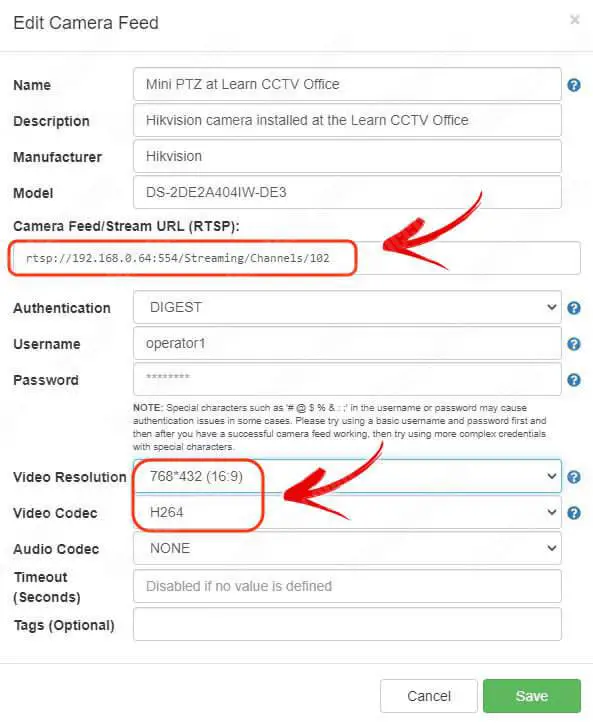
The picture below shows the Hikvision camera added to the Monocle feed.
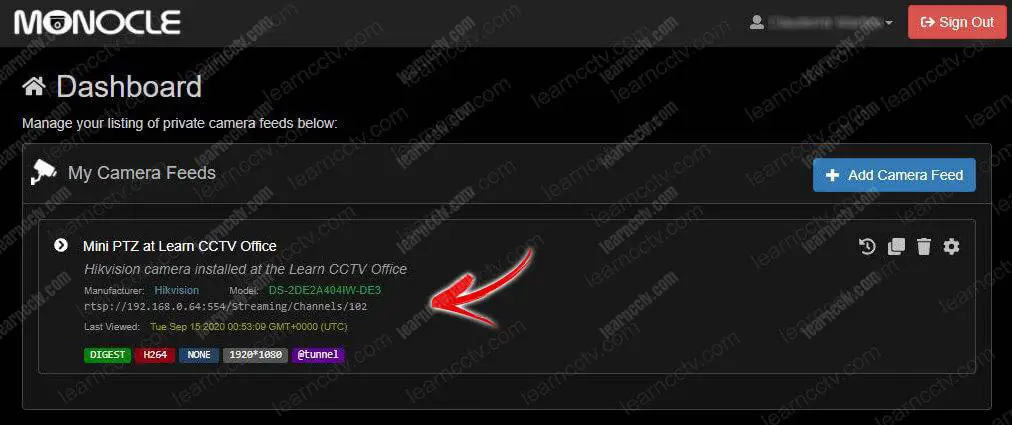
Now, it's time to add the camera to Alexa; let's see how to do that next.
Monocle set up for the Hikvision camera
Now it's time to add the Hikvision camera to Alexa.
Install the Monocle Skill and link the accounts, as shown below.
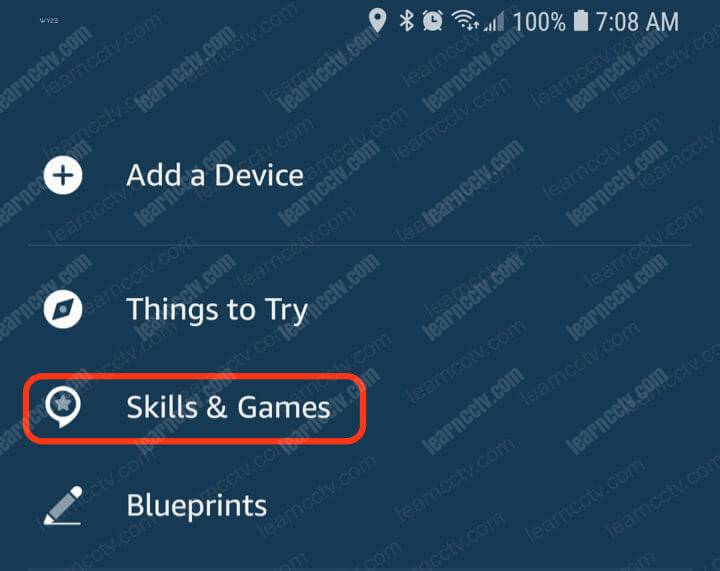
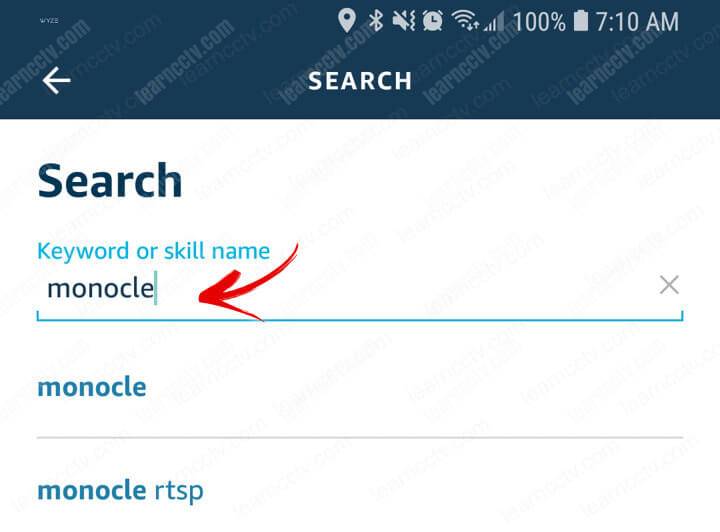
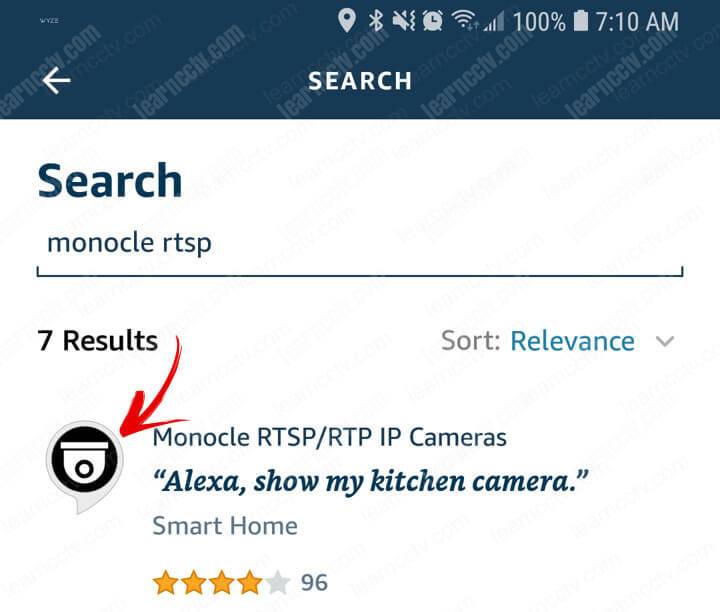
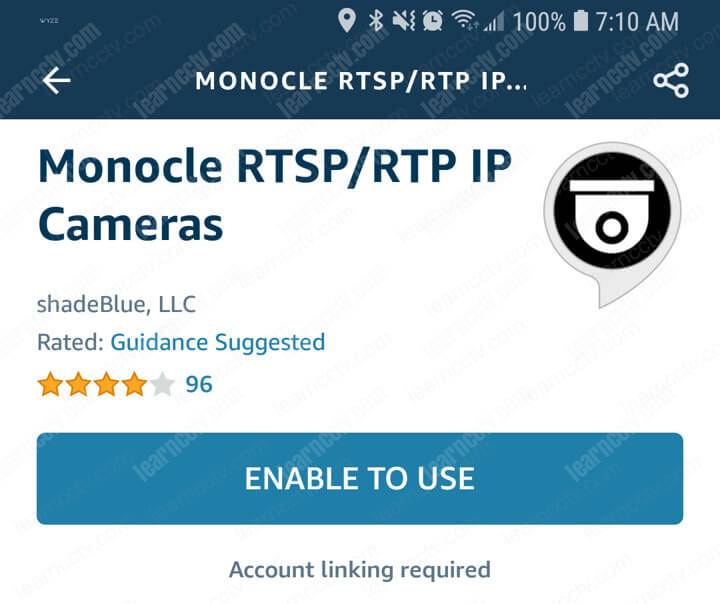
Use the Monocle credentials to log in and link the account to Alexa.
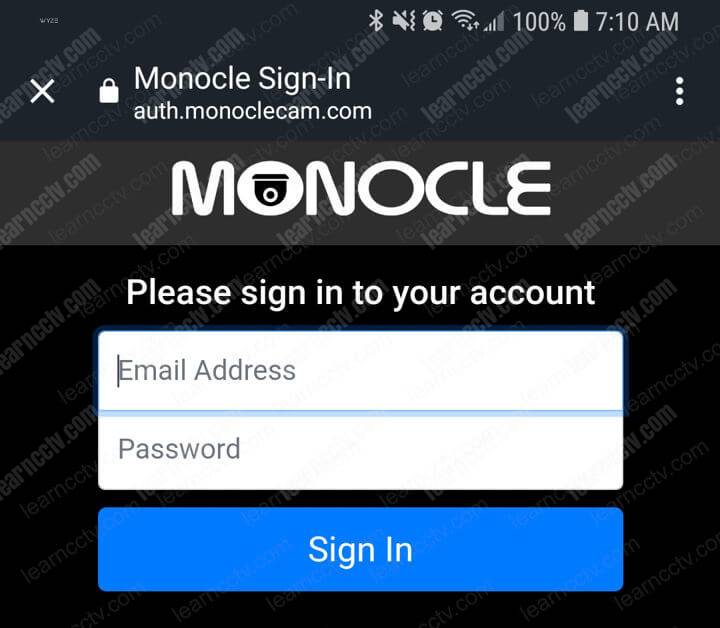
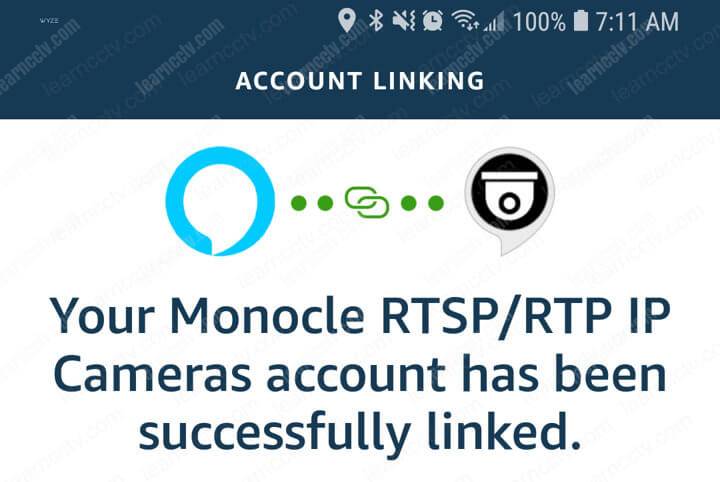
And now, the Hikvision camera should be ready to work with Alexa.
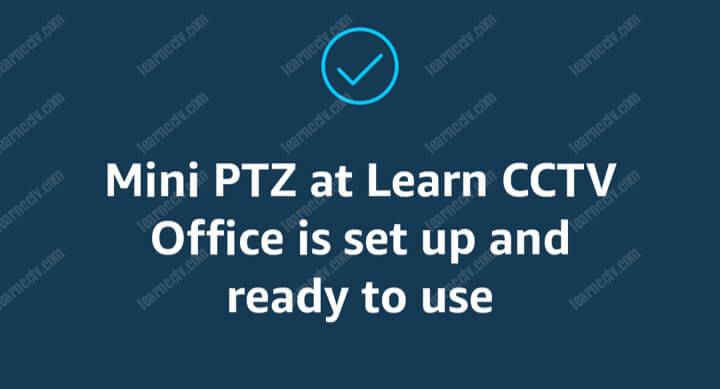
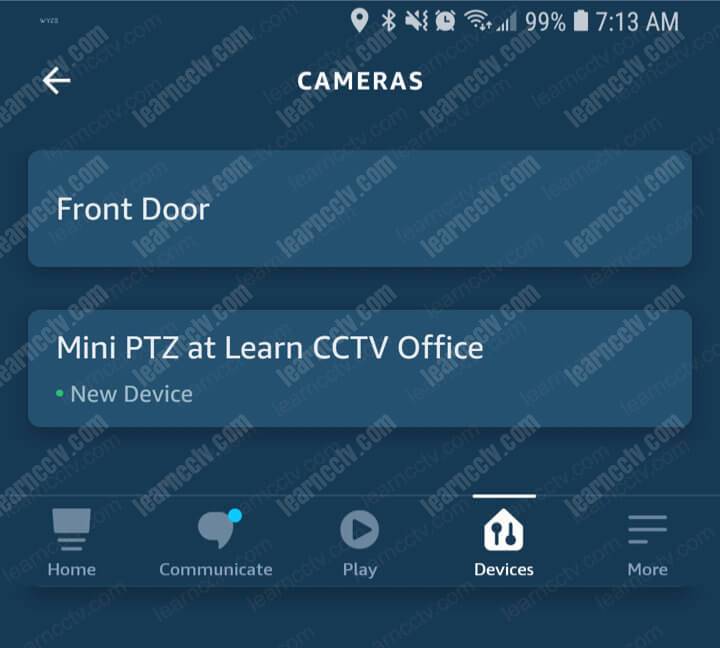
It's time to test the integration. Here's an example.
"Alexa, show Mini PTZ camera"
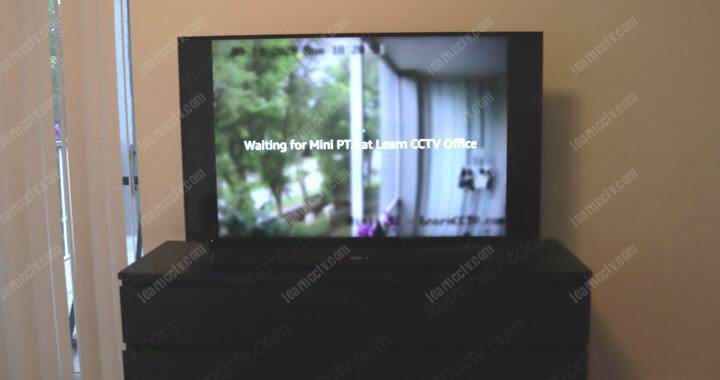
And, it works on my old Fire Stick TV.
Alexa is smart enough to find the camera by its long name, but sometimes it takes an extra step when she asks for confirmation, so later I just changed the name from "Mini PTZ Camera at Learn CCTV Office" to "Oudoor Camera."
I changed the name only on the Alexa App ( no need to change it on Monocle).
Unfortunately, the integration didn't work correctly with my Echo Show 5.
But, no worries, I could make it work with an extra step, let's see how I did it.
Hikvision Camera Working With Echo Show (Gateway Service with Tunnel)
OK, if your Hikvision camera is not working with the Echo Show, you probably need to set up the gateway service to encrypt the traffic.
You need to install the gateway application on a computer on your local network.
Just to recap, take a look at the illustration below again.
You need to install the Monocle Gateway for Encrypted Tunnel in the computer you see in the picture. Just follow the next steps.